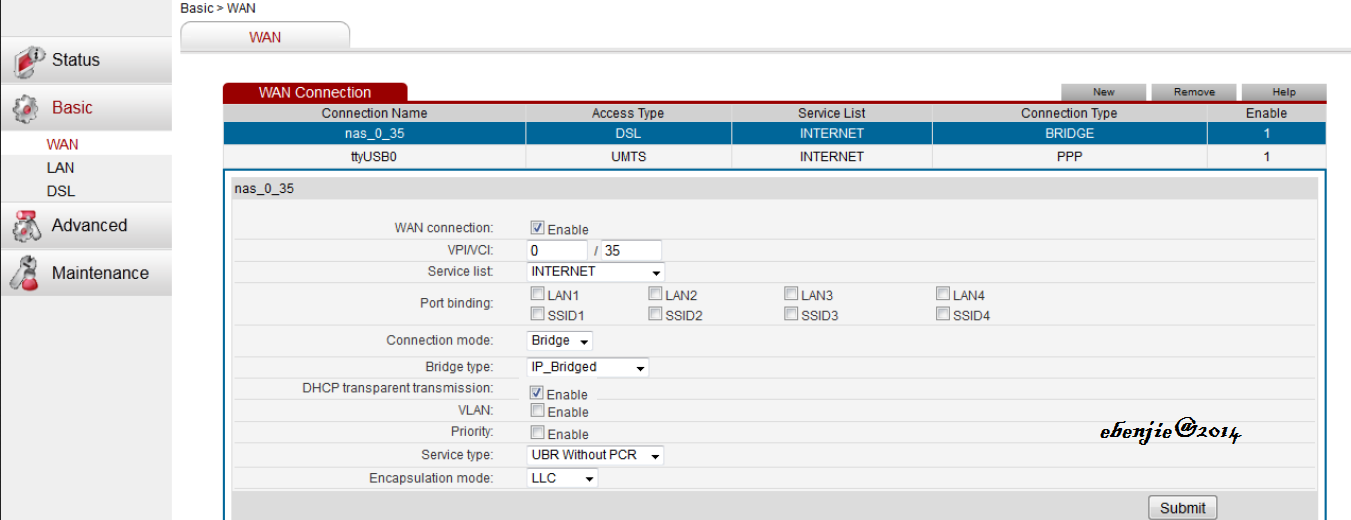
Here's how i configure Afaq Shamel 006.
1. Open modem address. 192.168.1.1 and hit enter.

..enter the username: admin, password: admin
Note: if still can't log in try a hardware reset and log in it again.
2.Go to Advanced Settings and click Advanced Setup.see pic below.

3.Click WAN SERVICE. Remove all profile, check all and click remove button to remove all. see pic below.

4.Go to Layer2 Interface. Remove all profile, check all and click remove button to remove all. see pic below.

5.Now, go to LAN, change the values found in the pic below. Note: assuming the main modem ip is 192.168.100.x. if the main modem ip is 192.168.1.x, change only the last octet(x) for the settings of LAN. Be sure to remember the IP Address for this will use if you change the wifi name and password in the future.

6. and click Management and click Reboot.
and that's it, you can now have Access Point using Afaq Shamel 006 model.
Note: be sure to test your configuration using a pre-made(1meter) lan cable to your main modem. For your Wifi name and Wifi password, you can open wireless settings to change the values.
1. Open modem address. 192.168.1.1 and hit enter.

..enter the username: admin, password: admin
Note: if still can't log in try a hardware reset and log in it again.
2.Go to Advanced Settings and click Advanced Setup.see pic below.

3.Click WAN SERVICE. Remove all profile, check all and click remove button to remove all. see pic below.

4.Go to Layer2 Interface. Remove all profile, check all and click remove button to remove all. see pic below.

5.Now, go to LAN, change the values found in the pic below. Note: assuming the main modem ip is 192.168.100.x. if the main modem ip is 192.168.1.x, change only the last octet(x) for the settings of LAN. Be sure to remember the IP Address for this will use if you change the wifi name and password in the future.

6. and click Management and click Reboot.
and that's it, you can now have Access Point using Afaq Shamel 006 model.
Note: be sure to test your configuration using a pre-made(1meter) lan cable to your main modem. For your Wifi name and Wifi password, you can open wireless settings to change the values.